
Basic Color Correction With the Lumetri Panel in Adobe Premiere CC

The Lumetri color correction tool is an amazing feature in Premiere Pro and it has controls which are very similar to Adobe Lightroom but it also integrates the power of color wheels, curves, native vignettes and much more With the Lumetri Color correction tool, we can quickly and easily change the color and feel of a shot So let’s jump right into it and take a look at this color correction example in Premiere Pro
The steps to achieving a great color correction
- Inside Premiere, we’ll first need to select the Color Workspace and this will reveal the Lumetri Color panel. We’ll choose “Window – Workspaces – Color”

- In the color workspace, the Lumetri color will show up on the right-hand side. There are several color correction modules that you can use and enable and we’ll start with the first one: the Basic Correction

- Input LUTS can be added in this section but for now, we’ll skip that and move to the next tool which is the White Balance eyedropper. This enables you to completely change the white balance of the shot by choosing a different white from the scene
- Next, we have the temperature and the tint of the scene where you can focus on the warmer tones of the scene of the cooler ones
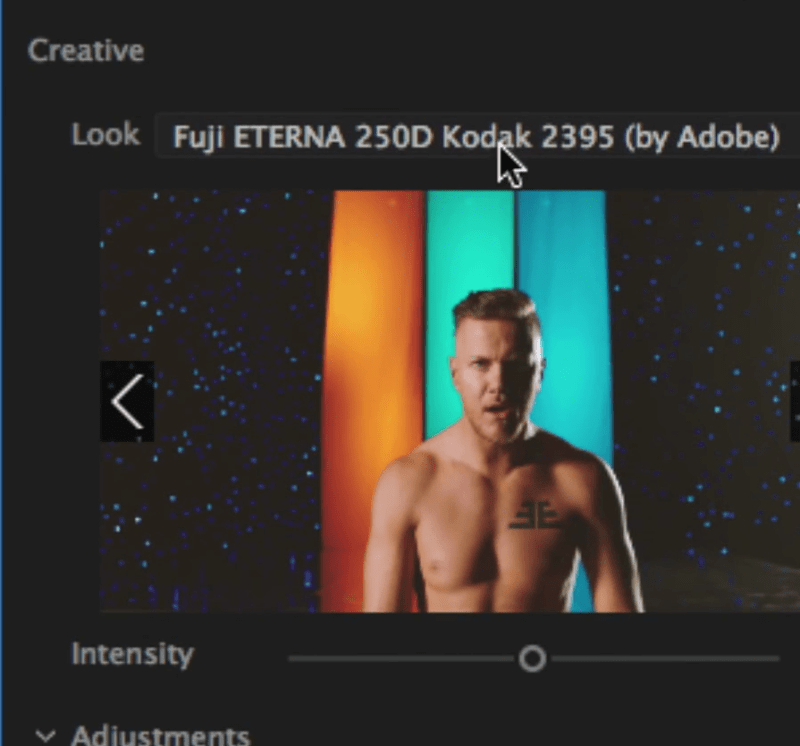
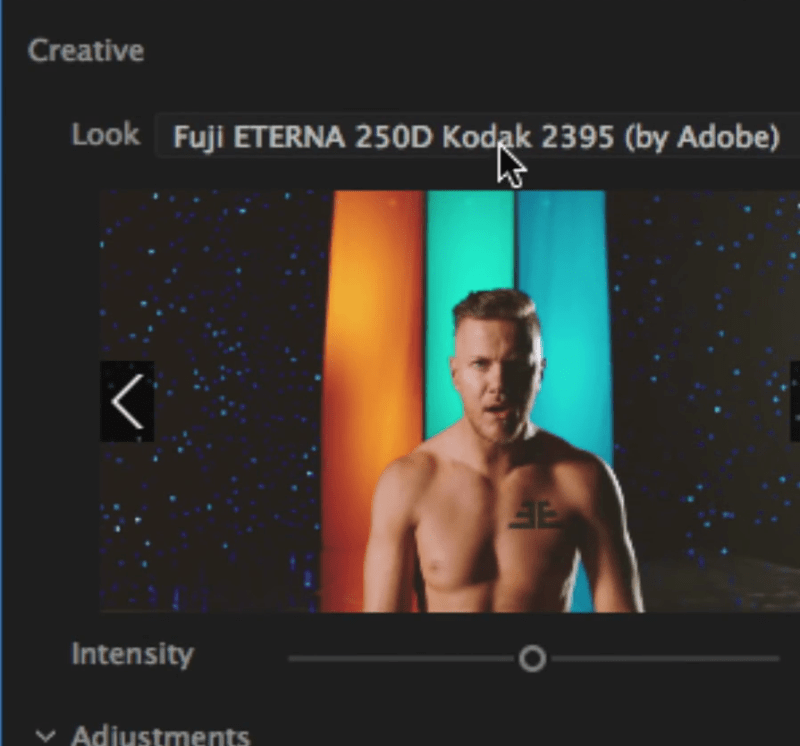
- Moving on, we’ll take a look at the creative looks. You can select from the drop-down menu or press the right away to cycle through them and preview them in real time

- There are even mode additional controls to give your footage the film look
- You can also adjust the shadows tine and highlight tint from this section
- The next section is the classic curves effect, which has a different approach in the Lumetri panel

- The classic color wheels for the mid-tones, shadows, and highlights are next in the panel

- Additionally, there are controls for the HSL Secondary. We can choose the eyedropper and select a color, then turn the mask on to see exactly the color that has been selected

- With the eyedropper + icon, we can add additional tones of the color
- And from the Refine section, we can denoise or blur the selected color section

- Moving on to the next section, “Correction”, it will affect the colors that we’ve previously selected in the HSL section
- The Lumetri effect will show up in the Effect Controls Panel and we can see exactly the changes that were applied onto the scene by turning it on and off

- The last section in the Lumetri Panel is the native Vignette which is very useful and easy to use. It functions the same way as the Vignette from Adobe Lightroom
 So these are the tools for basic color correction inside the Lumetri Panel. Stay tuned for more cool articles with tips and tricks coming soon


