
CC Environment and Spherical Maps in After Effects

Have you worked with Spherical Maps in After Effects?
If not, it’s a good place to learn how to. If you have, then just let us remind you how it’s done.
Note: Remember to watch the video tutorial in which Jeff, our Adobe certified instructor, explains the process.
Lets’ start!
When you’re working with environment you need to get a special kind of images. They’re called:
– Spherical Map,
– Light Probe (which is angular map)
– and Vertical Cross Images.
Notice that  they’re all large, large files.
If you just double-click on this Spherical Map image, you can see how big it is.
they’re all large, large files.
If you just double-click on this Spherical Map image, you can see how big it is.
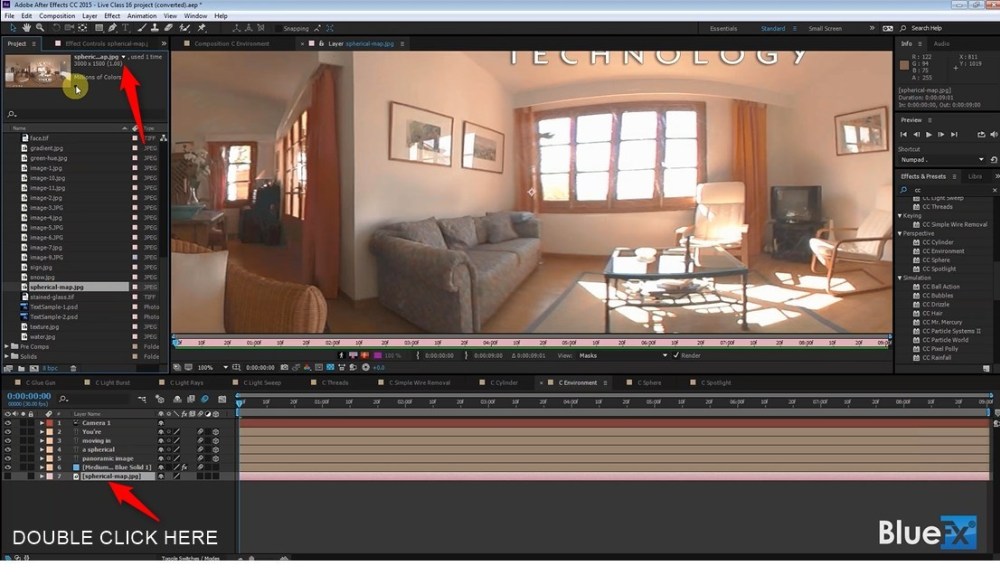
If I go to the Project Panel, and go to the Assets, and go to Spherical Map, you could see that it’s 3,000 by 1,500. So it’s a big image. And it’s been specifically made to be able to use it in a 3D space. Let me just zoom out and zoom
press “Shift +/”
So it’s created such that you can move around in this place. It’s a panorama, essentially.
After Effects Academy Member Extra
Access your ‘Maneuvering a 3D Camera ’ Course in the After Effects Academy. Jeff Sengstack will show you how to work with an After Effects 3D Camera. Not an AE Academy member? Click here to learn more about the After Effects Academy
So you tell the effect (the CC Environment Effect) what kind of image you’ve got, which one of these three images you’ve got. Let me click on this solid layer for a second to show you that. So you say, “What is it?” It’s a spherical one as opposed to probe or vertical cross.

Notice that You don’t apply the effect to the image. You apply the effect to the solid layer, that’s the size of your comp. So the comp here is 640 x 40. I kept these guys pretty small so it would move quickly. It’s a relatively small comp but the image is relatively much, much bigger obviously. So you create a solid layer equal to the size of the comp. And then you apply the effect to that, and then you say
what thing are we going to use inside the solid layer?
We’re going to use the spherical map on here, that’s how it’s going to work. And then you can take a camera and move around the scene.

So the camera’s not built-in to the process.
Here’s the video tutorial:
You need to:
 add the camera
and point it where you want to point it.
But as you point it, as you move it around, you can see down here with the camera, left-hand camera, that’s the camera right up there.
add the camera
and point it where you want to point it.
But as you point it, as you move it around, you can see down here with the camera, left-hand camera, that’s the camera right up there.
 And as you move it around you can see that the camera has kind of panned left and because the environment connects to the camera, you can notice
that the environment is not 3D
The text and the label things are in 3D space but the environment and the solid layer are not. They’re 2D.
And this camera goes around and reacts to them as if they were 3D space, which is pretty amazing.
What next?
And as you move it around you can see that the camera has kind of panned left and because the environment connects to the camera, you can notice
that the environment is not 3D
The text and the label things are in 3D space but the environment and the solid layer are not. They’re 2D.
And this camera goes around and reacts to them as if they were 3D space, which is pretty amazing.
What next?
So tilt up now.
So it’s tilting straight up and still sees this environment because it’s a spherical environment. And go back down to the right, my right anyways. And back to the beginning. Pretty remarkable. So that’s called environment. Have anything to add to this post? Feel free to share your thoughts with us.


