
Green Screen Keying with Ultrakey in Adobe Premiere Pro

In today’s blog post, Jeff, our Adobe certified instructor, will show us how to do green screen keying with ultrakey in Adobe Premiere Pro.
Note: Remember to watch the video tutorial Jeff has prepared for you.
Let’s get started!
Let’s go get the ultra key. The ultra key, just double click and it applies it automatically.
 Just notice this. Just look at your purple when we applied an effect to it that’s what happens.
We’ll go to effects and controls. Here is the ultra key effect.
Just notice this. Just look at your purple when we applied an effect to it that’s what happens.
We’ll go to effects and controls. Here is the ultra key effect.
 There’s a bunch of controls that you’ve seen, similar ones and side after effects.
A little bit more helpful than some of the ones side after effects, like what with your after key effect.
The first one is to select the color that you want to key up.
You click on this eye dropper tool. You don’t need to hold down the mouse button, just click on it.
There’s a bunch of controls that you’ve seen, similar ones and side after effects.
A little bit more helpful than some of the ones side after effects, like what with your after key effect.
The first one is to select the color that you want to key up.
You click on this eye dropper tool. You don’t need to hold down the mouse button, just click on it.
 Now, you need to find an average green. That would be too bright over there.
This little shadow will be too dark. I like to go near somebody’s clothes to pick something that could be good, then it will work well around that person.
Just clicking that already performed some magic. But you can see, there are problems in this little corner here.
This key, I’m not here to teach you how to use this key necessarily but you might just want to try some of these things out here.
Now, you need to find an average green. That would be too bright over there.
This little shadow will be too dark. I like to go near somebody’s clothes to pick something that could be good, then it will work well around that person.
Just clicking that already performed some magic. But you can see, there are problems in this little corner here.
This key, I’m not here to teach you how to use this key necessarily but you might just want to try some of these things out here.
Here’s the video tutorial:
Join The After Effects Academy And Get Acces To This Full Lesson + Monthly Live Classes And After Effects Templates 1.Highlight If you look at highlight, these are highlights here. Let’s see what happens if we change highlights. We get rid of the highlights. That is a cool thing number one that was the highlights you. Here it’s got kind of cut but it’s not bad. The highlight doing that basically took care of that problem.
After Effects Academy Member Extra
Access your ‘Video editing with Premiere Pro*’ Course in the After Effects Academy.* Jeff Sengstack will show you how edit videos in Adobe Premiere Pro. Not an AE Academy member? Click here to learn more about the After Effects Academy
2. Shadows
There are some shadow issues.
I dont’ think we don’t need to do these shadows too much but we could try that.
It cuts a little of the shirt a little bit there, you got to be careful about that because it’s a black shirt against a black shadow.
3. Tolerance
Tolerance means how wide of how green you really want to work with there but that’s okay.
4. Pedestal
Pedestal is also dealing with brightness.
You can test your work by going from composite here to alpha channels so you can see what’s going to come through.
 The white is what you’re going to see and the black is what you’re not going to see.
You’re going to see some stuff down here still and you’re going to see this junk up here.
You need to work on this a little bit more but that’s about the best we can do there.
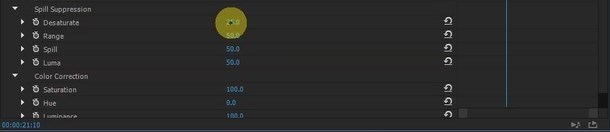
5. Spill suppression
Then there’s things that you can do is around the matte.
Then there’s things called spill suppression.
If you look at the— look really closely at the hair, if you got really close very much, there’s a little bit of the green coming in.
Also, a little bit of the green color falling on their faces, on their skin, that’s called spill. You can try to adjust that by either desaturating or not. I think I’m happy with that point as now.
The white is what you’re going to see and the black is what you’re not going to see.
You’re going to see some stuff down here still and you’re going to see this junk up here.
You need to work on this a little bit more but that’s about the best we can do there.
5. Spill suppression
Then there’s things that you can do is around the matte.
Then there’s things called spill suppression.
If you look at the— look really closely at the hair, if you got really close very much, there’s a little bit of the green coming in.
Also, a little bit of the green color falling on their faces, on their skin, that’s called spill. You can try to adjust that by either desaturating or not. I think I’m happy with that point as now.
 There, this is how you work with this particular key but now the trouble is if you go back with the composite, you’ll see that you need to deal with some stuff here and go back to alpha channel, you need to get rid of that. The way to do that is through the mask.
Thank you for watching this video. My name is Jeff Sengstack and an Adobe Certified Expert and the lead instructor here at BlueFX.net. If you want to watch this entire video lesson as well as other life classes and after effects crash courses then I invite you to check out the BlueFX After Effects Academy.
Just click the link below this video to find out what we prepared for you in the After Effects Academy.
Join The After Effects Academy And Get Acces To This Full Lesson + Monthly Live Classes And After Effects Templates
There, this is how you work with this particular key but now the trouble is if you go back with the composite, you’ll see that you need to deal with some stuff here and go back to alpha channel, you need to get rid of that. The way to do that is through the mask.
Thank you for watching this video. My name is Jeff Sengstack and an Adobe Certified Expert and the lead instructor here at BlueFX.net. If you want to watch this entire video lesson as well as other life classes and after effects crash courses then I invite you to check out the BlueFX After Effects Academy.
Just click the link below this video to find out what we prepared for you in the After Effects Academy.
Join The After Effects Academy And Get Acces To This Full Lesson + Monthly Live Classes And After Effects Templates


