
How To Create Circle Bursts in AE
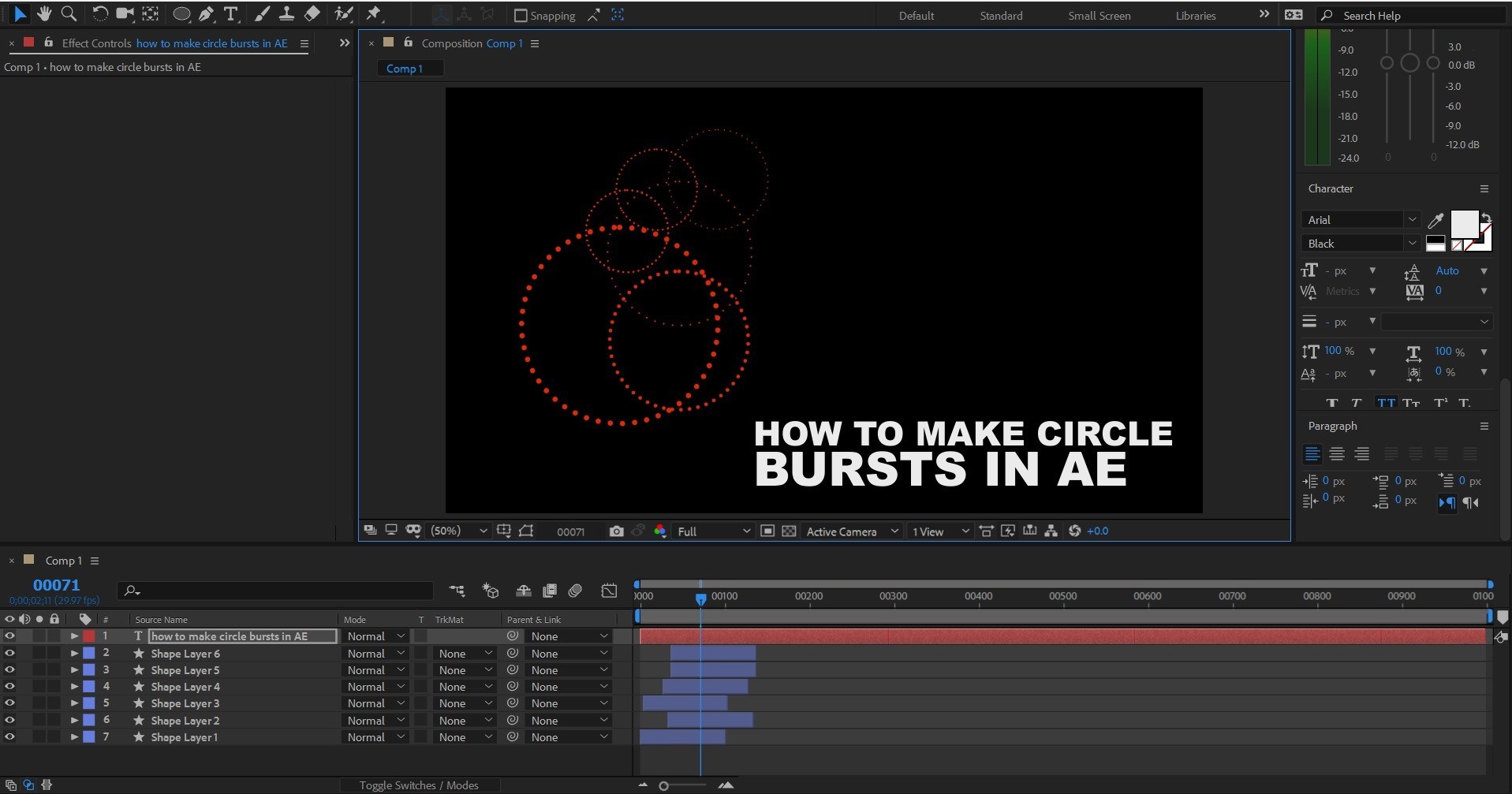
You’ve seen them everywhere, from whiteboard explainer videos to business presentations. The circle bursts are fun to use and they add character to your videos. Let’s go ahead and see how to create them in After Effects
The steps
First we’ll create a new solid, Layer – New – Solid, and we’ll make it the comp site 1920x1080px.
 In the tools panel, select the Ellipse tool and create a new circle. You can press “Q” multiple times to cycle between tools.
 Make sure your have no fill and the stroke is set around 25
 Next, open the dropdown menu for the shape layer and go to Contents – Stroke 1
 We’ll set a keyframe for the Stroke Width for 25, move the cursor forward in time and set it to 0
 Then we’ll go to the dashed section and we’ll click twice on the + sign
 We’ll set the Dash value to 0 and we’ll slightly increase the Gap value
 Next, under the Line Cap section, set the value to “Rounded”
 Finally, under the Transform section of the shape layer, which is Transfrom Ellipse 1, set a keyframe
 for the scale at “0”, move the cursor in time, and set it to 100
You can now select the layer and press “u” to show all the keyframes, select them all and press F9 to easy ease them
for the scale at “0”, move the cursor in time, and set it to 100
You can now select the layer and press “u” to show all the keyframes, select them all and press F9 to easy ease them
 For more advanced users, you can change the motion further from the graph editor and add more dynamics to the scene
Taking things further
Now that we have our animated circle bursts, we can duplicate them several times, press “s” to bring down the scale property and adjust the size and also press “p” to bring down the position property and move them around a bit
 From the effects menu, we can also add a drop shadow effect and make the burst more visible
Additionally you can sequence the layers very easily by selecting the first shape layer and then the last one while holding the shift key
Next, we will trim them at 100 frames time mark, so set the time indicator to that value and press Alt+] to trim the layers
From the effects menu, we can also add a drop shadow effect and make the burst more visible
Additionally you can sequence the layers very easily by selecting the first shape layer and then the last one while holding the shift key
Next, we will trim them at 100 frames time mark, so set the time indicator to that value and press Alt+] to trim the layers
 Then go to Animation – Keyframe Assistant – Sequence Layers and check “overlap” and we’ll set the duration to 10 frames, and hit OK
 The layers will be automatically be arranges in a sequence so the bursts will be displayed one after the other
 So this is how to easily create animated circle bursts in Adobe After Effects. It’s a very simple technique to use and implement and it will help you give more life to your presentations.
Stay tuned for our next article where we will discuss more cool tips and tricks in After Effects and Premiere Pro
So this is how to easily create animated circle bursts in Adobe After Effects. It’s a very simple technique to use and implement and it will help you give more life to your presentations.
Stay tuned for our next article where we will discuss more cool tips and tricks in After Effects and Premiere Pro


