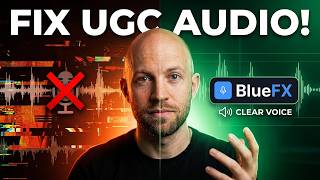
How to remove background noise from audio (free AI tool — Adobe Podcast)
Bad audio kills more videos than bad video. You can ship a slightly out-of-focus shot and people stay. Ship a recording with a hammer banging in the background, an HVAC system humming, or a clap echo and people are gone in 4 seconds. There's a free AI tool that fixes all of it in under a minute.
Adobe Podcast's Voice Enhancer is the cleanest one-click audio cleanup tool on the market right now. Here's exactly how to use it — the upload flow, the two sliders that matter, and the one setting most people get wrong.
The setup: why your audio sounds bad
Three things kill audio: broadband noise (fans, traffic, AC), transient noise (hammers, claps, doors), and echo/reverb (recording in a room with hard walls). Adobe Podcast handles all three with the same tool.
The free tool: Adobe Podcast Voice Enhancer
The link: podcast.adobe.com/en/enhance. Free tier with no Adobe subscription required. Sign in with a free Adobe account, get a generous monthly limit.
Free vs. premium difference
Free tier caps file length and monthly minutes but uses the same enhancement model as the paid Adobe products. You're not getting a degraded version — you're getting the full thing with a usage cap. For most creators the free tier is enough.
Live demo: hammer noise
The first demo is recorded with an actual hammer banging in the background. Raw audio: unusable. Processed audio: hammer is gone, voice is crystal clear, no audible artifacts on the speech. 30 seconds of processing.
Live demo: clapping in the background
Same workflow. Loud clapping bleeds through the recording. After processing, it's gone. The model knows what's voice and what isn't — and only keeps the voice.
The slider you have to get right
Two sliders in the UI. The first one (noise reduction) is the danger zone. Don't max it. Set it around 70-80%. Past that, the model starts cutting into your voice and you get the robotic, over-processed sound that screams "AI-cleaned audio."
The second slider: speech enhancement
The second slider boosts speech clarity and presence. Set it to taste — somewhere between 50% and 80% works for most voices. Too high and it sounds processed. Too low and the cleanup feels half-done.
Echo demo
The fourth demo strips heavy room echo from a recording made in a tiled bathroom (worst-case acoustic). The output sounds like it was recorded in a treated studio. This is the part that surprised me most.
When to use it (and when not to)
Use it for: podcasts, interviews, voiceover, course recordings, video narration, social media talking-head clips.
Don't use it for: music, ambient field recordings, anything where the "noise" is actually part of the recording. The model assumes you want pure voice — give it a music track and it'll mangle the music.
Stack it with the rest of your audio workflow
Cleaning audio is one step. Adding background music, generating voiceover, mixing, mastering — those are the rest. The AI Media Machine has voice generation, music generation, and full video editing in one tab — 94% off lifetime. Clean your audio in Adobe Podcast, then finish in AI Media Machine. That's the modern audio-to-video pipeline in two tools.