
Kinetic Text Animation in After Effects

In this tutorial, we’ll take a look at creating a cool text kinetic animation in AE and for this, we’ll be using the built-in tools from the software along with a helpful expression. So let’s go ahead and see how it’s done
The steps to creating the kinetic text
First, we’ll create a new composition and we’ll make it 1920×1080 px and we’ll set the duration to 5 seconds.
 Select Layer-New – Text and we’ll type in a text.
 Next, we need to click on the down arrow to toggle the properties and under the animate section we’ll choose “Position”.
 We’ll move the text outside the visible area, on the Y axis
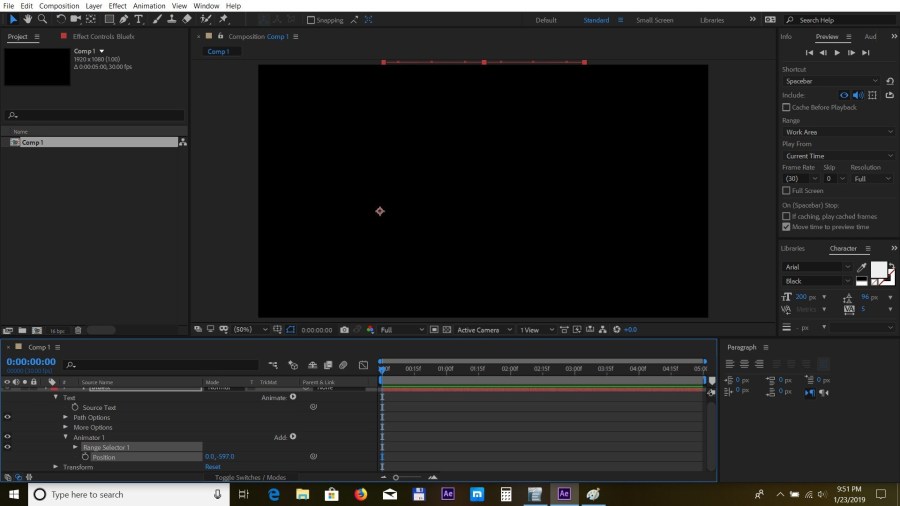 and then go to the Range Selector and click on the stopwatch to set a keyframe for the offset property. We’ll set the value to -100
 then move the time indicator forward in time and set the value to 100.
 Next, we’ll head over to the advanced menu and under the Shape menu we’ll choose “Ramp Up” and we’ll set both Ease High and Ease Low to 50%. This will give us a nice and smooth entrance to the text.
 Now to enhance the animation even further, we’ll head back to the animate button and choose “scale”
 and in the newly created Animator 2, we’ll click on Add – Property and choose “Rotation”
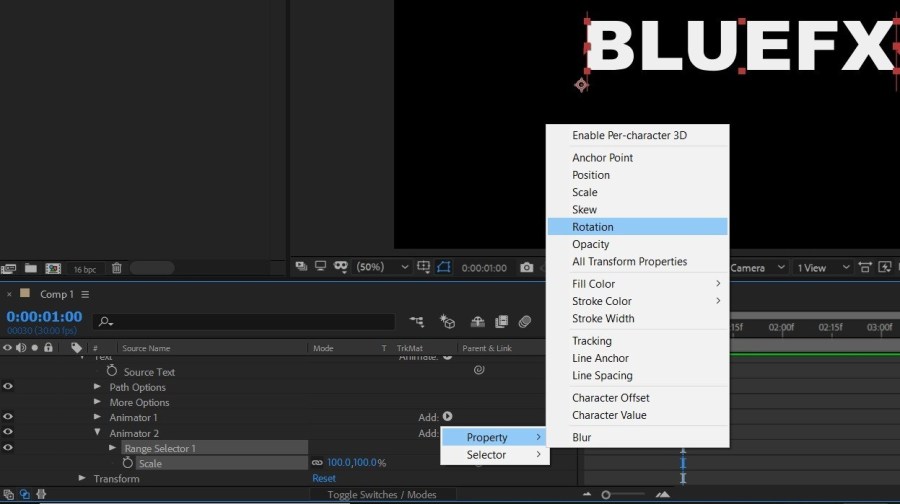 We’ll set the scale to 0% and the rotation to -90
 Now we’re going to add an expression, so click on the Add button again, choose “Selector – Expression”
 and we’ll alt+click on the stopwatch next to the amount property and add the following expression:
delay = .1;
myDelay = delay*textIndex;
t = (time – inPoint) – myDelay;
if (t>=0){
freq =3;
amplitude = 150;
decay = 8.0;
s = amplitude*Math.cos(freq*t*2*Math.PI)/Math.exp(decay*t);
{s,s}
}else{
value
}
and we’ll alt+click on the stopwatch next to the amount property and add the following expression:
delay = .1;
myDelay = delay*textIndex;
t = (time – inPoint) – myDelay;
if (t>=0){
freq =3;
amplitude = 150;
decay = 8.0;
s = amplitude*Math.cos(freq*t*2*Math.PI)/Math.exp(decay*t);
{s,s}
}else{
value
}
 So this is how our animation looks like, you can fine tune things and adjust values to your liking, for example, you can increase the value of the amplitude in the expression to 250 to make the animation more dynamic.
You can also randomize the order of the characters by going into the advanced section of the Animator 1 and enabling the “randomize order” property.
So this is how our animation looks like, you can fine tune things and adjust values to your liking, for example, you can increase the value of the amplitude in the expression to 250 to make the animation more dynamic.
You can also randomize the order of the characters by going into the advanced section of the Animator 1 and enabling the “randomize order” property.
 Thank you for taking the time to read this article and we hope you’ve enjoyed this tutorial. Please stay tuned for more cool tips and tricks in After Effects and Premiere Pro coming soon


