
Typeface Text Reveal in After Effects

In today’s article, we’re going to take a look at a very simple technique to create a colorfully animated text reveal. We’ll be using just the included After Effects tools and draw simple masks, and you can use and apply this method with any version of After Effects.
Let’s dive right into it
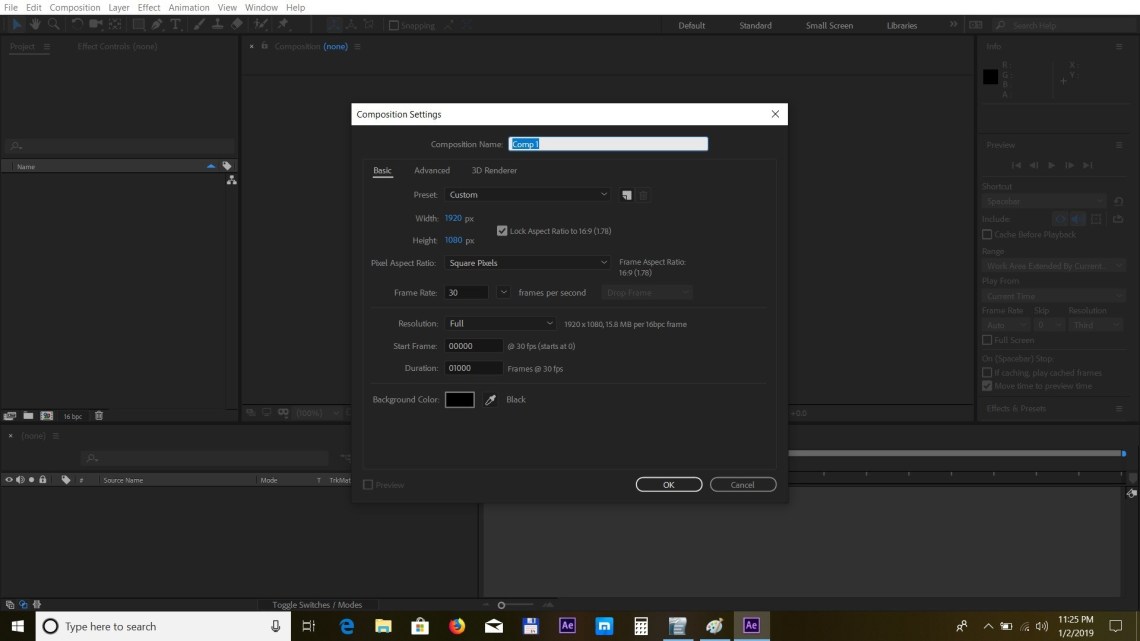
As always we’ll first create a new composition by going to Composition – New Composition and we’ll set it to 1920x1080px and 30 frames per second.
 First we’ll create a large text, so select the Text tool and type it in.
 Make sure to not have any layer selected and choose the pen tool and we’ll draw a random mask below the text and we’ll make it white.
 Next, we’ll have to animate the shape’s points so for that we’ll bring down the shape options and go to Shape 1 – Path 1 and click on the Path property.
 We’ll create a keyframe at this point by pressing the stopwatch and then we’ll click back on the path to see the points.
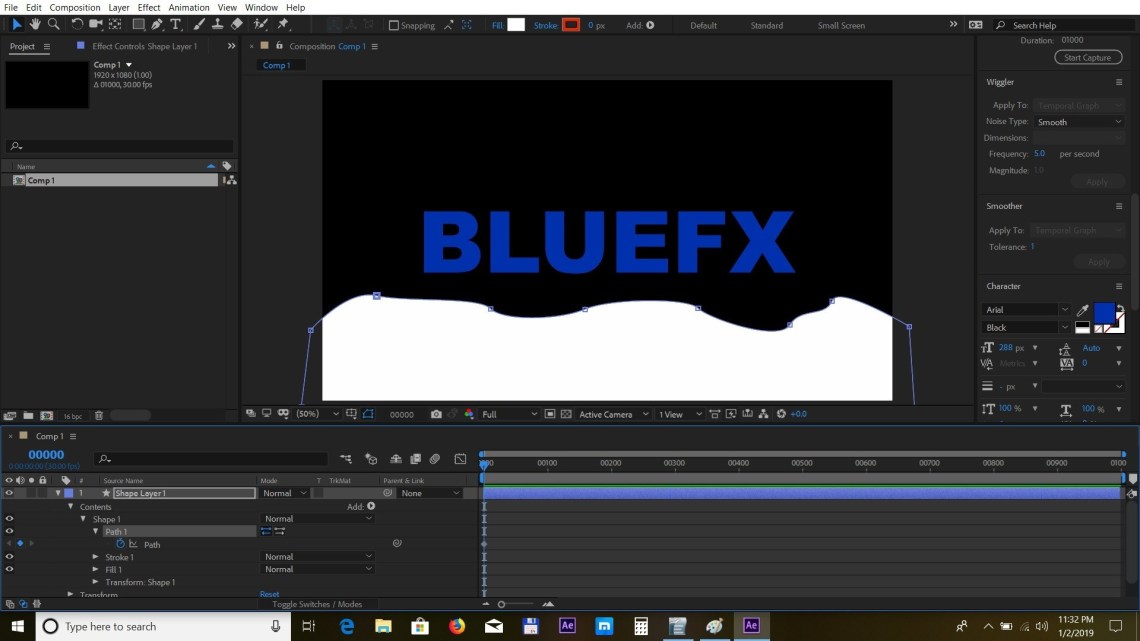 We’ll move the cursor in time and position the points randomly across the text
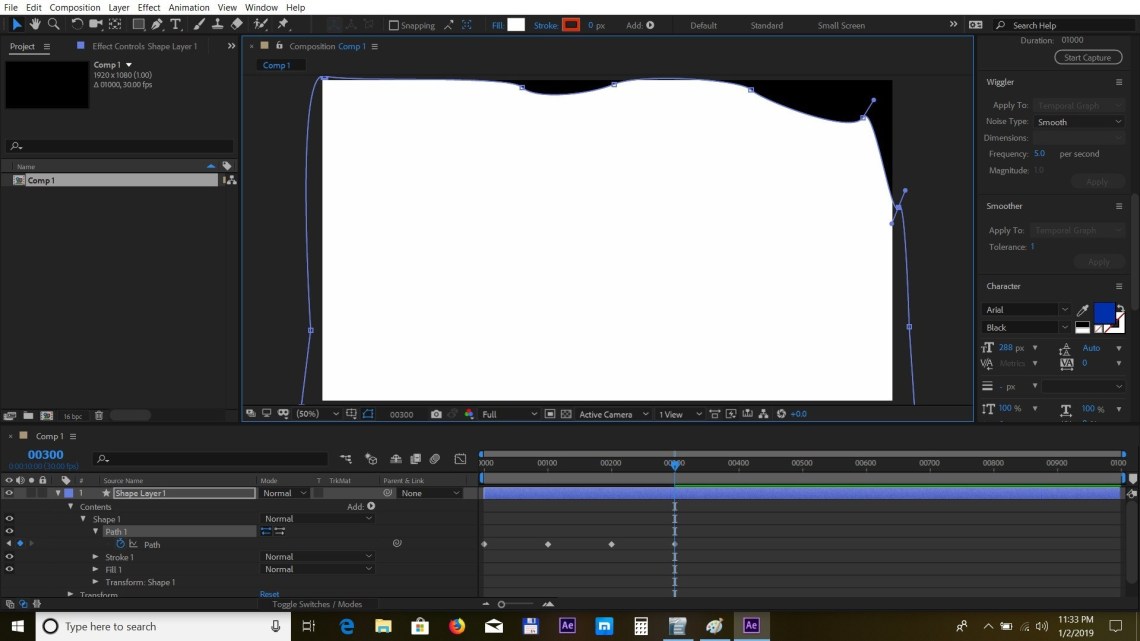
 Next, we’ll move the cursor forward in time and repeat the operation
And finally we’ll repeat the operation once again while making sure we cover the whole text
Next, we’ll move the cursor forward in time and repeat the operation
And finally we’ll repeat the operation once again while making sure we cover the whole text
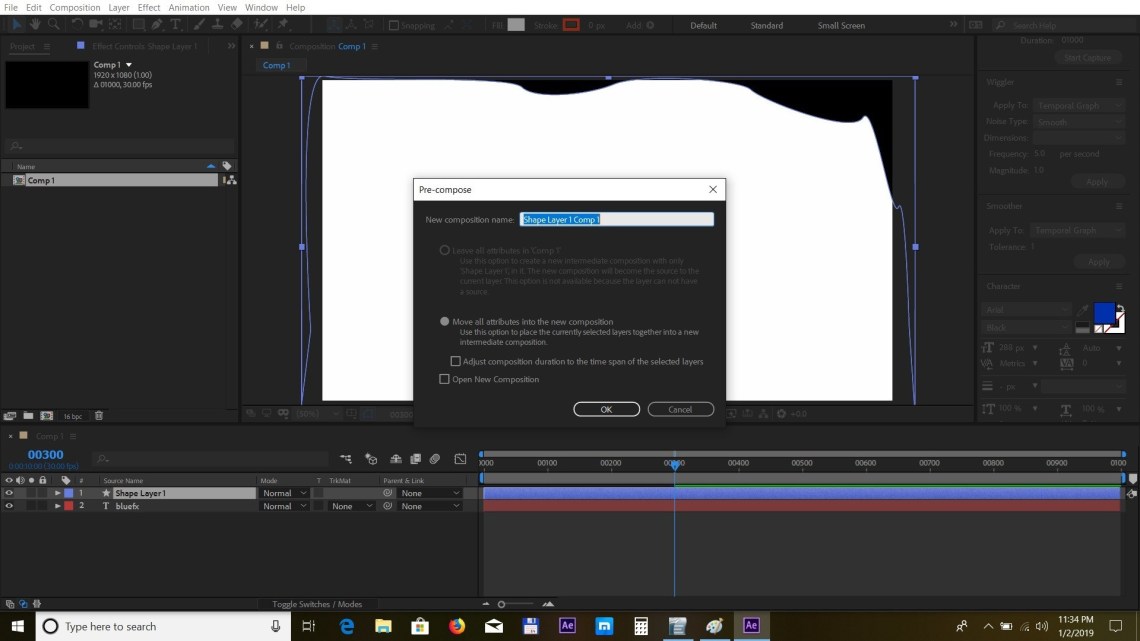
 Now we’ll precompose the shape layer by pressing Ctrl+Shift+C or Command+Shift+C on macs and we’ll set the track matte of the text layer to Alpha Matte
 We now have a cool text reveal animation but let’s take this a step further.
 Select the text and the precomp layers and duplicate them by pressing Ctrl+D or Command+D on macs
We’ll move the new duplicates a bit forward in time and change the color of the text
Select the text and the precomp layers and duplicate them by pressing Ctrl+D or Command+D on macs
We’ll move the new duplicates a bit forward in time and change the color of the text
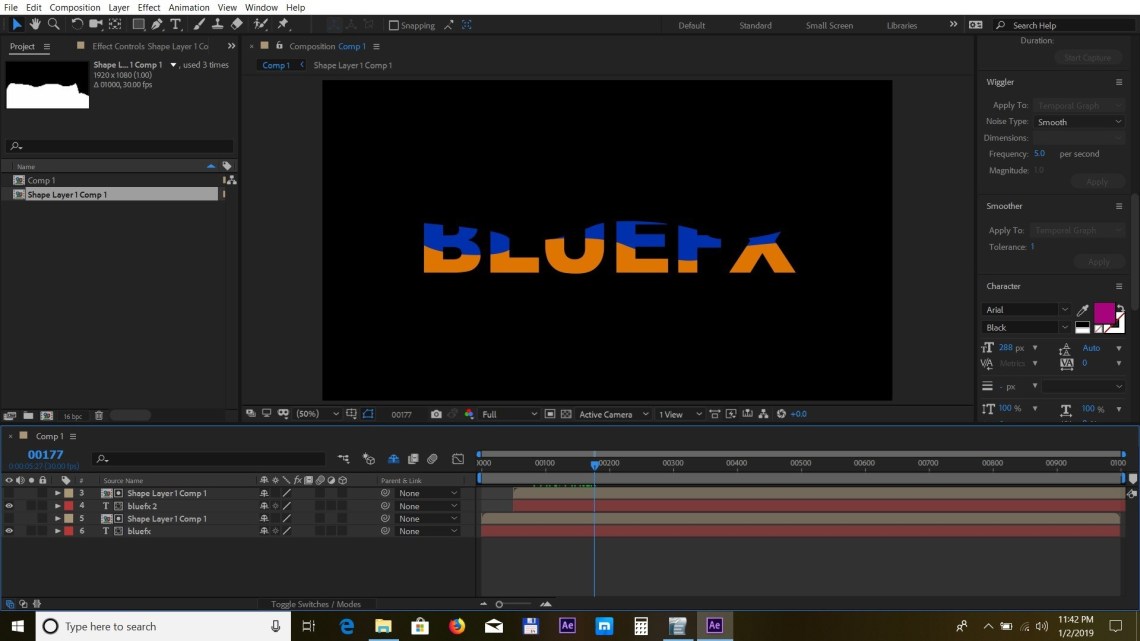 We can even the make animation look cooler by inverting the top shape layer: right click – transform – flip vertical, and now the reveal will also start from the top
 We can add another set of duplicates, move them forward in time similar to what we did before, change the color of the text and place it at the top in the composition.
 So this is the technique for creating cool texts reveals and it only takes minutes to use and apply.
We hope you’ve enjoyed this easy tutorial and please stay tuned for more cool articles and tips.
So this is the technique for creating cool texts reveals and it only takes minutes to use and apply.
We hope you’ve enjoyed this easy tutorial and please stay tuned for more cool articles and tips.


