Why Your AI Ads Look Fake (And How to Fix It)
One of our customers asked me to help fix an ad for a prostate supplement. The ad was made with AI, and it was easy to tell. I rebuilt it inside the AI Media Machine, and this post walks through what was wrong and how I fixed each part.
Three signs the ad looked fake
The voice didn't match the face. It sounded like a man of 35, maybe 40, but the man on screen looks like he's in his 50s, close to 60. His skin also had a slightly plasticky look. And he gestured and moved his head far more than a real person would. At one point, during a pause where nobody was speaking, he made a strange movement for no reason. Motion like that tells viewers very quickly that the video was made with AI.
Compare that with the fixed version. The shadows move naturally across his face, there's no odd blinking, and his eyebrows and hands look right. He talks the way a person naturally talks, without overdoing it.
Why the script had to change
The customer also wanted a few phrases changed. Supplement ads have compliance rules on Meta, and in this ad the lines that spoke to the viewer as "you" had to be rewritten. "You have to learn about this breakthrough technique" became "This breakthrough technique must be learned."
That left two spots to fix. One needed only a new voiceover. The other was an on-camera line, "I'm finally getting a full night's rest, and thousands of others are seeing these exact same improvements," which needed new video. I didn't have the original image or the original voice. All I had was the video the customer sent.
Fix 1: clone the voice and swap the voiceover
To keep the same voice, clone it. In the AI Media Machine, open the audio tools and go to Clone Voice.
The cloner needs an audio file of the original voice. I exported the ad from Premiere Pro with the format set to MP3 and the video turned off, but any editing app can do this.
Drop the MP3 into the voice cloner, give it a name, and click clone. You can also turn on noise reduction and volume normalization. You only have to do this once, because the voice is saved under My Cloned Voices. It works with any voice, including your own.
Then paste in the new line, select the cloned voice, and generate. I downloaded the audio, dropped it into Premiere Pro, cut it in where the old line was, and muted the original voiceover. The clone sounded seamless.
Fix 2: rebuild the on-camera line with AI Avatar
For the second fix I used the AI Avatar tool. It comes with plenty of avatars, and you can create your own or upload an image.
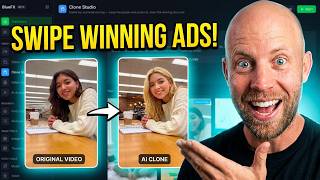
Since I didn't have the original image, I took a screenshot of a good frame from the ad. The frame had text on it. You can remove text with ChatGPT or another editing tool, or with Image Maker inside the AI Media Machine. In Image Maker, I uploaded the screenshot as the reference image and typed "remove the text from the image."
Keep the aspect ratio the same as the source. On my first try I had the wrong setting, which would have produced a different image. For a vertical video, choose 9:16. With the right setting you get a clean, high-quality version of the frame.
Next, go back to AI Avatar, upload the cleaned image as a new avatar, and select it.
AI Avatar works best for short talking-avatar clips of up to about a minute. For anything longer, split the script into several shots. The main advantage of this tool is full control over the voice. You can upload your own voiceover or generate one with the available voices. I had already cloned this speaker's voice, so I selected it and added the script.
I'd redo the whole script rather than only the one line, because the original avatar's movements were so exaggerated. You could cut out the worst moment, but the rest would still look like typical AI output.
My first script ran 61 seconds, which was too long, so I cut it down. The tool generates the voiceover first so you can listen to it. Mine came out at 24 seconds. Choose portrait for the video and click generate. A longer segment takes a couple of minutes, although the tool is usually fast.
The new version was much calmer, and the movements no longer looked exaggerated. For this topic and a man who looks 50 to 60, a laid-back delivery fits better. From there, click the download button and you have the full talking avatar.
Making the person look real
Removing the wild motion helped, but the image still looked a little plasticky and too perfect, which is another sign of AI. The fix is to start from an image that looks highly realistic. My "You can't tell, can you?" UGC ad is a good example of the look I mean, since it could pass for a real phone video.
I searched Google for a reference photo of a man around 50, sitting and talking to the camera. Most results were too polished and clearly shot on high-end cameras. For a natural testimonial you want something closer to a home movie, so I picked a less professional shot and saved it.
In Image Maker, I set the format to 9:16, uploaded that photo as a reference, and wrote:
I want the person to be looking into the camera. He is not holding a phone and the shot should be a shoulder shot. His hands are visible, just like on the reference image.
I also uploaded an image of the original speaker to guide the AI toward making the first image look similar to the second. The first attempt missed what I wanted, which happens with AI. When you know your prompt is clear, regenerate. I removed the extra reference and tried again, and this time the result looked like a real person and was much better than the original.
Image generations are inexpensive, so make as many as you need. What matters is having a good image before you make the video.
Next, I uploaded that new image and asked the AI to change the facial features so it wasn't the exact same person, while keeping the character's look. The result was similar but not identical. Everything in an AI video starts with a really good image.
AI Avatar or Video Maker Ultra
With the new image, you have two options. The inexpensive route is to upload it to AI Avatar and make a short ad.
For the best quality, open Video Maker and choose Ultra, the highest-quality level. Upload the new image as the first frame and use a shorter piece of the script. Put whatever the character says in quotes, for example: The man is saying, "Most guys assume these issues are just part of getting older." Set the aspect ratio to 9:16 for TikTok-style video and keep the duration short. Three seconds would have covered this line, and I chose 4 to be safe. Voice generation is on by default, so you can click generate from there.
Ultra costs more. My 4-second clip was 32 credits, and the same credits get you almost half a minute with AI Avatar. It also gives you less control over the voice. In exchange you get much higher realism. In my cooking video clone, the actor holds a fork and gestures through a complex shot, and it's really hard to tell it was made with AI.
When I'm going to put a lot of ad spend behind a video on Meta, I want that ad to be as good as it can be, so that's when I use Ultra.
The result
The Ultra clip looked far more real. The voice matches the face, the shadows move naturally, there's none of the odd blinking, and his eyebrows and hands look natural. He talks like a real person, without exaggerating.
If you plan to spend a lot on Meta or Facebook ads, take the time to make them this way.
Try it
The AI Media Machine is available as a lifetime deal at 94% off, with one payment and no subscription. If you'd rather have my team build your ads, book a free strategy call.